by
User Not Found
| Jun 17, 2016
Contact Messenger Customer Service at 1‐800‐827‐5151 to have the funeral home’s EGR and MIP accounts linked. This is a one-time process and enables the funeral home to share the information between the two applications.
Names of guests who have signed into the Expression Guest Registry (EGR) system can be printed in Make It! Personal (MIP) stationery by following these steps:
If the Case is already present in EGR:
1.) From the Make It! Personal home screen go to Manage Case Info > Add a Case.
2.) Under the Basic tab, enter the deceased’s first name, last name and gender.
3.) Under the Advanced tab, go to Service Info and add the Service Date.
4.) Click SAVE.
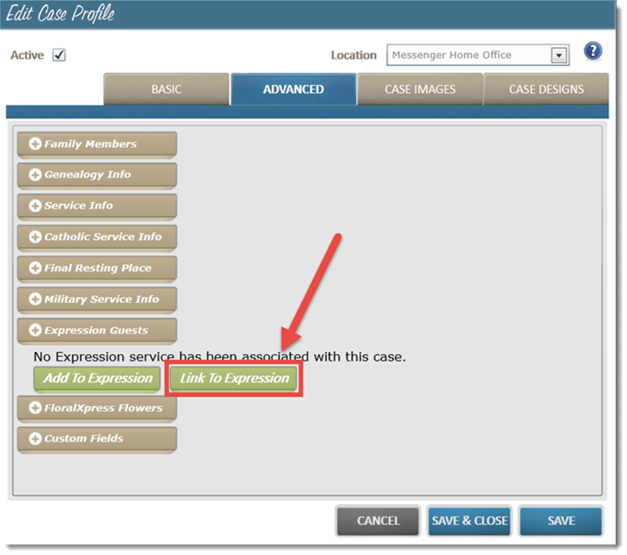
5.) Under Advanced tab, go to Expression Guests.
6.) You will have two options:
- Add to Expression
- Link to Expression
7.) Click the Link to Expression button.
8.) Choose the appropriate Case to link. (show cases dialog)
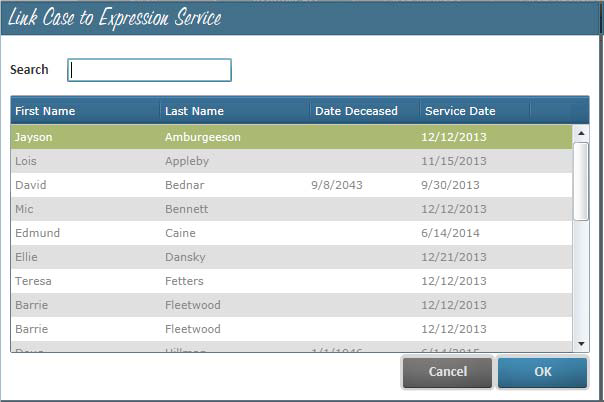
9.) Click "OK".
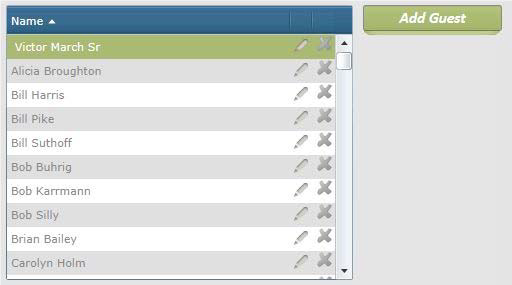
10.) The Guest List is now available for viewing and/or editing.
If the Case is being set up in Make It! Personal and then transferred to EGR:
1.) In Make It! Personal, go to Manage Case Info, Add a Case.
2.) Under the Basic tab, enter the deceased’s first name, last name and gender.
3.) Under the Advanced tab, go to Service Info and add the Service Date.
4.) Click SAVE.
5.) Under Advanced tab, go to Expression Guests.
6.) Click the Add to Expression button.
7.) The Enable Contributions dialog appears, click Yes.
The Case will now be accessible via the EGR Dashboard and the mobile interface (iPad).