by
User Not Found
| Jun 14, 2016
All of us at Messenger are so excited that you are just moments away from gaining access to one of the most powerful tools available to our industry. The Make It! Personal web application is intended to make the task of personalizing stationery fun, fast, and easy. We certainly believe it lives up to that expectation. So, let’s get started!
Logging into Make It! Personal Using Safari Web Browser
Note: This guide assumes you will be using Safari. We recommend updating to the latest version.
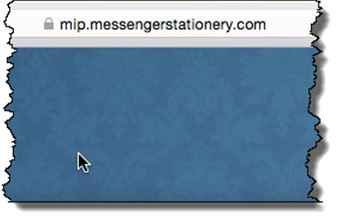
1.) Navigate to the following address in your web browser:
https://mip.messengerstationery.com
Make It! Personal is compatible with Internet Explorer, Safari, and Mozilla Firefox.
Google Chrome is NOT compatible.
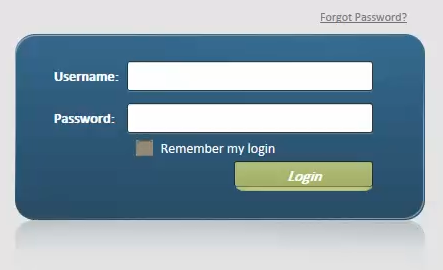
2.) Please enter the username and password provided to you by Messenger. The password is case sensitive, so please enter the password exactly as you have received it. Watch out for blank spaces at the end of your username and password if copying & pasting them in from an email.
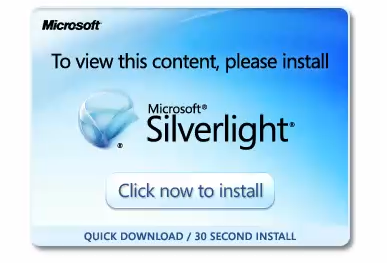
3.) Upon logging in for the first time, you may receive a prompt to install Silverlight. Silverlight is similar to Adobe Flash, and is required to run the Make It! Personal web application.
Click the “Click now to install” button.
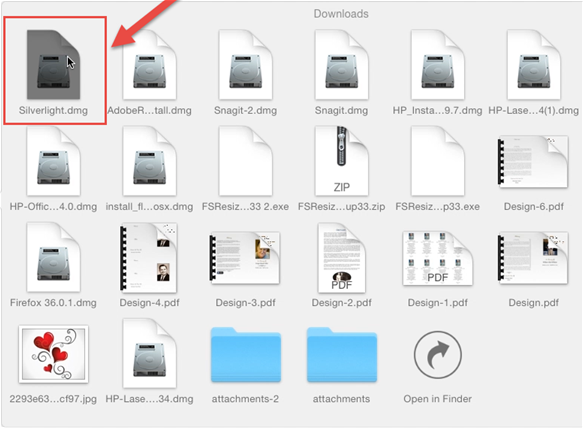
4.) Open your “Downloads” folder from the Dock. You should see a file namedSilverlight.dmg, you want to click on this file to open the disk image.
5.) The disk image will open a window showing the Silverlight.pkg installer. Go ahead and click on it to begin the installer. A popup may appear with a message about determining if the software is able to be installed, just click“Continue.”
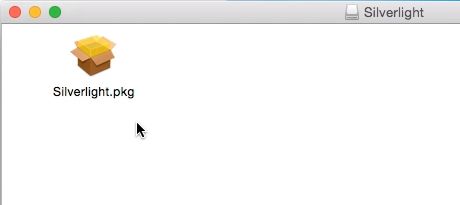
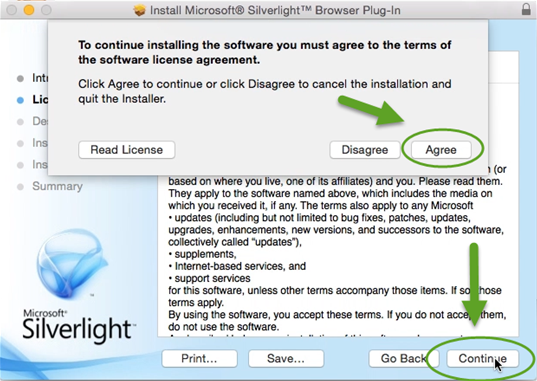
6.) The Microsoft Silverlight Installer will begin. Click “Continue,” and then“Agree” to the license agreement. Leave the install location and options as‐is, and click “install.”
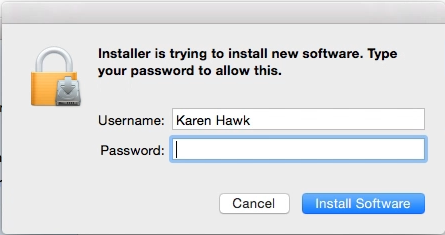
7.) You’ll likely be prompted for your Mac system password to allow the new software to be installed. Enter your system password, and click “Install Software.”
8.) Once complete, you will get a message stating that installation was successful.
Click “close.”
It is now necessary to completely exit Safari (all windows/tabs) and restart the browser. You can now return to https://mip.messengerstationery.com

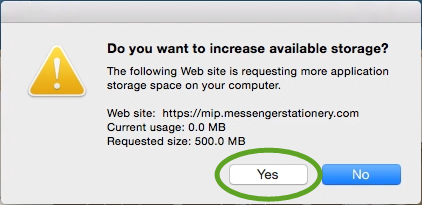
9.) Once logged into the web application, at some point you will be prompted to increase the amount of space on your hard drive that Silverlight is allowed to use. Always select “Yes” to allow the web application to temporarily use hard drive space while working on designs. Once designs are saved, this will store the data in the cloud app, and will not consume space on your hard drive.
10.) You may wish to create a “Bookmark” for the Make It! Personal web application for easier access. You can do this at any time by navigating to https://mip.messengerstationery.com
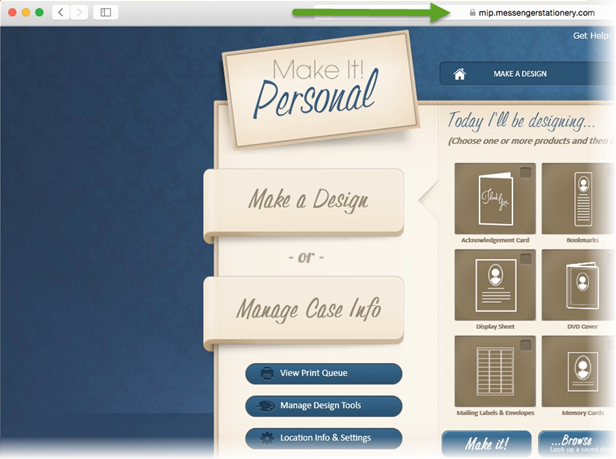
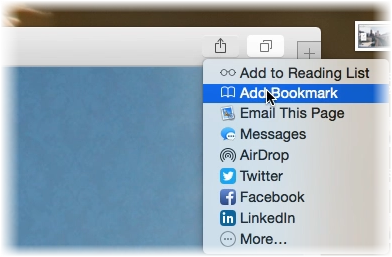
11.) Once you see the login page for Make It! Personal, click on the “share”(square with up arrow) icon in the upper‐right browser window. Next click “Add Bookmark.”
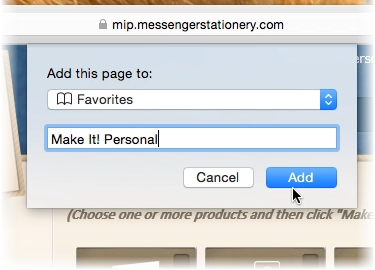
12.) The drop down that opens will allow you to customize the name and location of your bookmark for optimal efficiency. You may want to change the name of the Bookmark from “Get Started” to something more appropriate likeMake It! Personal, or MIP. Once you’re satisfied with the name and location of your bookmark, click “Add.”
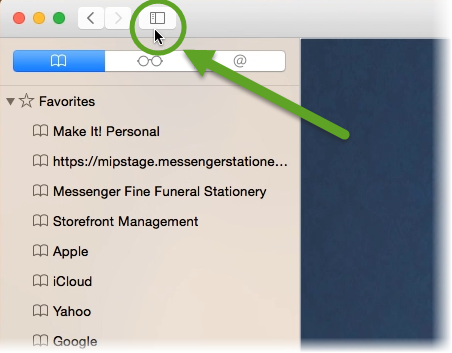
13.) You can further refine your bookmark by clicking on the Bookmarks Sidebar icon in the upper left of the browser window. If desired, you can also add a shortcut icon to the Desktop. Just drag the bookmark from the Bookmarks Sidebar to any empty space on the Desktop.
If an icon for Silverlight.dmg remains on your desktop, it is now safe to right click, and select “Eject” to dismiss the icon.
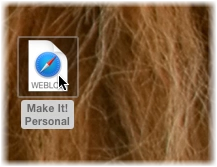
You have now successfully logged into Make It! Personal, and are well on your way to personalizing your Messenger products!
Logging into Make It! Personal Using Firefox Web Browser
Note: This guide assumes you will be using Firefox for MAC. We recommend updating to the latest version. After upgrading you may be prompted to “Activate” Silverlight once again. Please choose “Allow and remember.”
1.) Navigate to the following address in your web browser:
https://mip.messengerstationery.com
Make It! Personal is compatible with Internet Explorer, Safari, and Mozilla Firefox.
Google Chrome is NOT compatible.
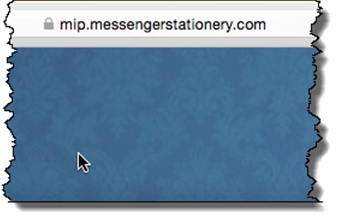
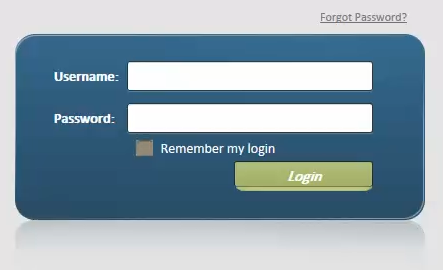
2.) Please enter the username and password provided to you by Messenger. The password is case sensitive, so please enter the password exactly as you have received it. Watch out for blank spaces at the end of your username and password if copying & pasting them from an email.
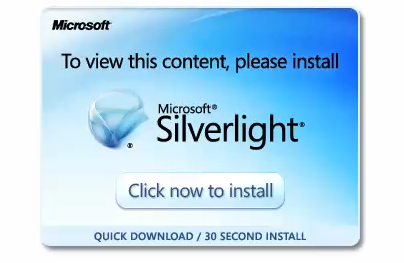
3.) Upon logging in for the first time, you may receive a prompt to install Silverlight. Silverlight is similar to Adobe Flash, and is required to run the Make It! Personal web application.
Click the “Click now to install” button. Click “Save File” when prompted.
4.) Open your “Downloads” folder from the Dock. You should see a file named Silverlight.dmg, you want to click on this file to open the disk image.
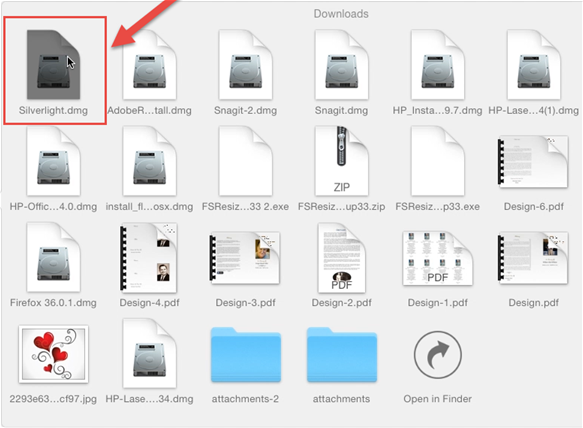
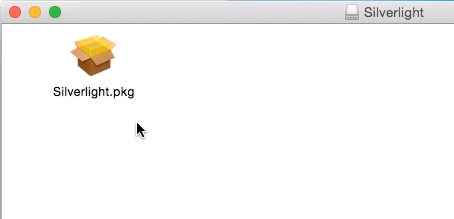
5.) The disk image will open a window showing the Silverlight.pkg installer. Go ahead and click on it to begin the installer. A popup may appear with a message about determining if the software is able to be installed, just click “Continue.”
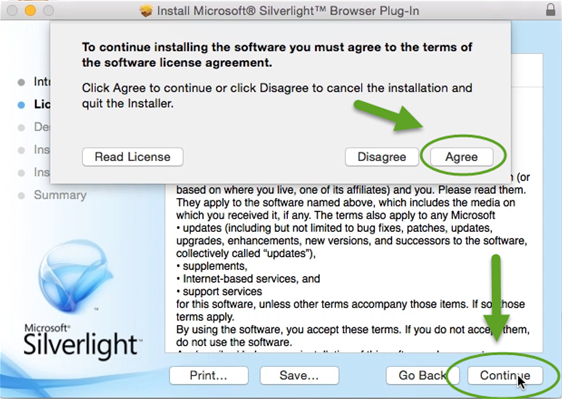
6.) The Microsoft Silverlight Installer will begin. Click “Continue,” and then“Agree” to the license agreement. Leave the install location and options as‐is, and click “Install.”
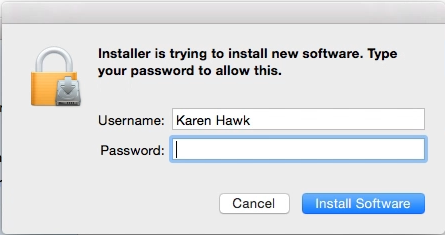
7.) You’ll likely be prompted for your Mac system password to allow the new software to be installed. Enter your system password, and click “Install Software.”
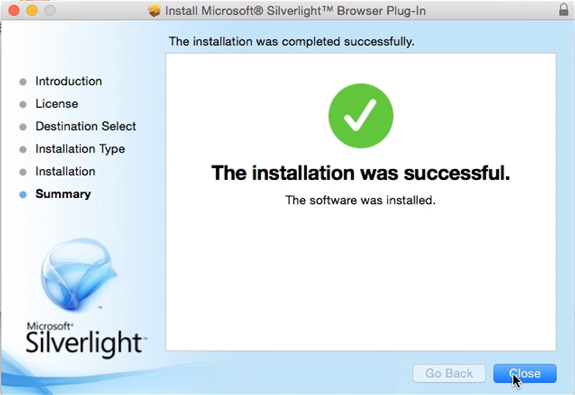
8.) Once complete, you will get a message stating that installation was successful.
Click “close.”
It is now necessary to completely exit Safari (all windows/tabs) and restart the browser. You can now return to https://mip.messengerstationery.com
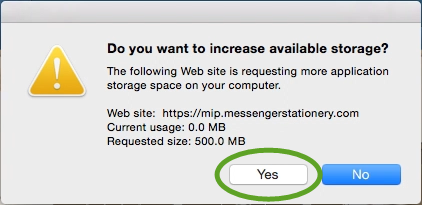
9.) Once logged into the web application, at some point you will be prompted to increase the amount of space on your hard drive that Silverlight is allowed to use. Always select “Yes” to allow the web application to temporarily use hard drive space while working on designs. Once designs are saved, this will store the data in the cloud app, and will not consume space on your hard drive.
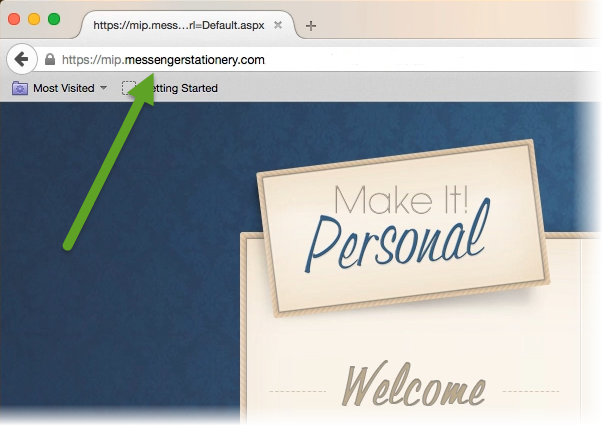
10.) You may wish to create a “Bookmark” for the Make It! Personal web application for easier access. You can do this at any time by navigating to https://mip.messengerstationery.com
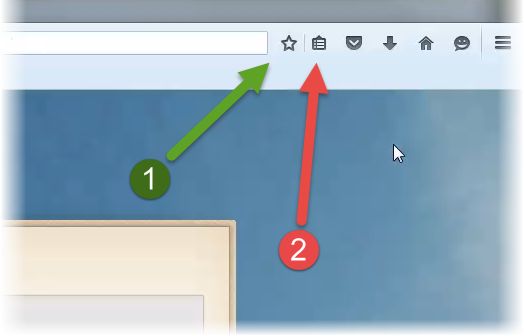
11.) Once you see the login page for Make It! Personal, click on the “star” icon in the upper-right browser window. Next click the “clipboard” icon just right of the “star” icon and select “Show All Bookmarks.”
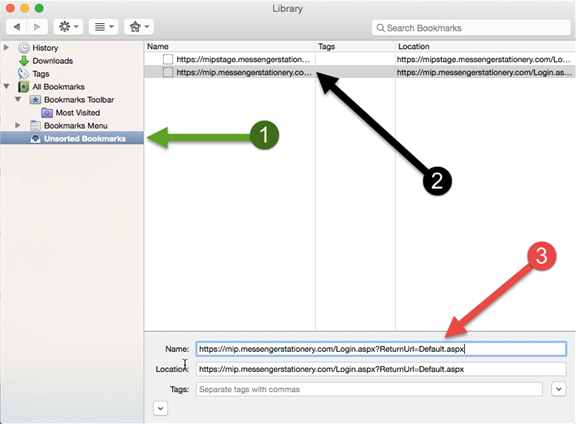
12.) The “Bookmarks Library” window that opens will allow you to customize the name and location of your bookmark for optimal efficiency. First click on“Unsorted Bookmarks” where your new bookmark is initially located. In the right panel, be sure to select the Make It! Personal URL. You may wish to give this a shorter, easier to recognize name. Simply delete the text in the Namefield, and replace it with something memorable, perhaps “Make It! Personal”
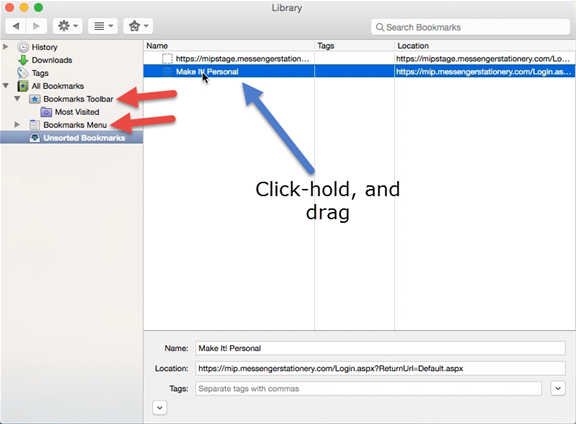
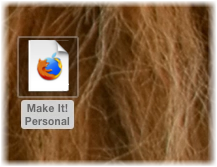
13.) From here you can move your Bookmark to the location of your preference. Just click‐hold and drag the Bookmark to your choice of location. Some common locations would be Bookmarks Toolbar, Bookmarks Menu, and you also have the option of making a shortcut icon on your Desktop. Just drag it to any empty space on the Desktop.
If an icon for Silverlight.dmg remains on your desktop, it is now safe to right click, and select “Eject” to dismiss the icon.
You have now successfully logged into Make It! Personal, and are well on your way to personalizing your Messenger products!